
Which Smart Home Maintenance Tips Actually Extend Device Life?
Last Updated: October 30, 2026
Quick Summary
The smart home maintenance habits that extend device life are a short monthly pass/fail checklist, scheduled firmware updates, regular network and router checks, periodic sensor and camera cleaning, and a yearly review of accounts and device lifecycles. Consistency matters more than an elaborate routine.
- Spend 20 to 30 minutes a month running a pass/fail checklist for locks, cameras, sensors, alarms and the thermostat.
- Replace lock batteries when they fall below 50 percent.
- Turn on automatic firmware updates where offered, then check monthly that they installed.
- Test smoke and CO alarms monthly and replace batteries every 6 to 12 months for battery-backed units.
- Compare thermostat readings with a reference thermometer once a season and recalibrate if the difference is large.
Table of Contents
- Why Smart Home Devices Fail Early Without Upkeep
- Build a Smart Home Maintenance Checklist You Can Repeat
- Keep Smart Home Firmware Updates on a Schedule
- Protect Your Smart Home Network Against Slowdowns and Drops
- Maintain Your Smart Thermostat and Climate Sensors
- Clean, Power and Test Sensors, Cameras and Locks
- Set Up a Monthly Smart Home Maintenance Calendar and Start Your First Check This Weekend
- Frequently Asked Questions
Why Smart Home Devices Fail Early Without Upkeep
Smart home devices often fail sooner than people expect, and the cause is rarely the hardware alone. Dust clogs sensors, batteries drain quietly, firmware falls behind, and Wi-Fi signals weaken as routers age.
Most owners treat smart home gear as set-and-forget. That works for a week or two, then small problems stack up. A motion sensor reads false triggers after months of dust buildup. A thermostat drifts out of calibration. A camera lens fogs with humidity and nobody notices until a recording is needed.
The practical fix is a repeatable routine. Below, we walk through the checks that actually extend device life, from a monthly checklist to a seasonal calendar you can set once and follow.
Build a Smart Home Maintenance Checklist You Can Repeat
A smart home maintenance checklist works best when it is short enough to finish in one sitting. Aim for 20 to 30 minutes per month. Long checklists get skipped, and a skipped checklist protects nothing.
The difference between a generic home checklist and a smart-home checklist is that every item should produce a pass/fail result. "Check the camera" is not a task.
Start with the devices that carry the most risk: door locks, cameras, leak sensors, smoke and CO alarms, and the thermostat. These fail in ways that matter, and they are easy to test.
- Locks: Unlock with the app, the keypad code, and the physical key. Confirm the bolt extends fully and the door reports "locked" in the app. Check battery level and replace cells below 50 percent.
- Cameras and doorbells: Wipe the lens, confirm the live view, walk through the field of view, and verify that a motion event produces a recorded clip and a push alert.
- Leak and freeze sensors: Press the test button on each sensor and confirm the hub reports the alarm. Place a damp paper towel against the probe to simulate a leak if the sensor has no test button.
- Smoke and CO alarms: Press the test button on each unit and confirm interconnected alarms sound. Replace batteries on the manufacturer's schedule, typically every 6 to 12 months for battery-backed units.
- Thermostat: Change the mode, raise and lower the setpoint, and confirm the equipment responds. Check the current reading against a reference thermometer.
- Hub and router: Confirm the hub is online, list connected devices, and note any device that shows offline or weak signal.
Keep the checklist in a shared note or calendar entry, and record the date and result of each test.
The point is consistency, not perfection. A checklist you follow every month beats an elaborate one you abandon after two rounds.
Keep Smart Home Firmware Updates on a Schedule
Firmware updates fix security holes, improve device stability, and sometimes add features. Ignoring them is one of the most common ways smart devices age badly.
Set a fixed day each month to review updates in each device's app. Many apps show a pending update badge, but it is easy to miss. Turn on automatic updates where the manufacturer offers them, then check monthly that they actually installed.
Watch out: a firmware update can occasionally change how a device behaves. Read the release notes when the update is large, and keep the device's manual or setup details handy in case a reset is needed.
Protect Your Smart Home Network Against Slowdowns and Drops
Many smart home problems are network problems. Devices that drop offline often have a weak or congested Wi-Fi connection, not a fault in the device itself.
Start by checking the router's age and placement. Routers in closets or metal cabinets lose signal quickly. Restart the router every few months to clear memory buildup, and update its firmware through its own app.
Power protection matters too. Sudden voltage spikes can damage hubs, routers, and cameras. A surge-protected power strip for the network gear and key devices is a low-cost safeguard. The Power Strip With USB & Type-C, Surge Protection from Modern Goods Living ($28.99) offers 13 outlets and USB and Type-C ports, which suits a home office or media center where several devices share one wall outlet.
Maintain Your Smart Thermostat and Climate Sensors
Thermostats and climate sensors drift over time. A sensor reading 3 degrees off can cause your heating or cooling to run longer than it should, which wastes energy and wears equipment.
WiFi Temperature Humidity Monitor with Smart Home Integration →
Once a season, compare the thermostat reading with a reliable reference thermometer placed nearby. If the difference is large, recalibrate or check the sensor placement. Sensors near a heat source, a window, or a bathroom will report misleading numbers.
For humidity, monitoring matters as much as temperature. Sustained high humidity can damage furniture, electronics, and wood. The WiFi Temperature Humidity Monitor with Smart Home Integration from Modern Goods Living ($59.99) includes two sub-devices, so you can track two rooms from one app and set alerts for readings outside your preferred range. Allow about 30 minutes after setup for accurate readings.

Clean, Power and Test Sensors, Cameras and Locks
Dust and grime are quiet enemies of smart devices. A cleaning pass every three months keeps sensors responsive and cameras clear.
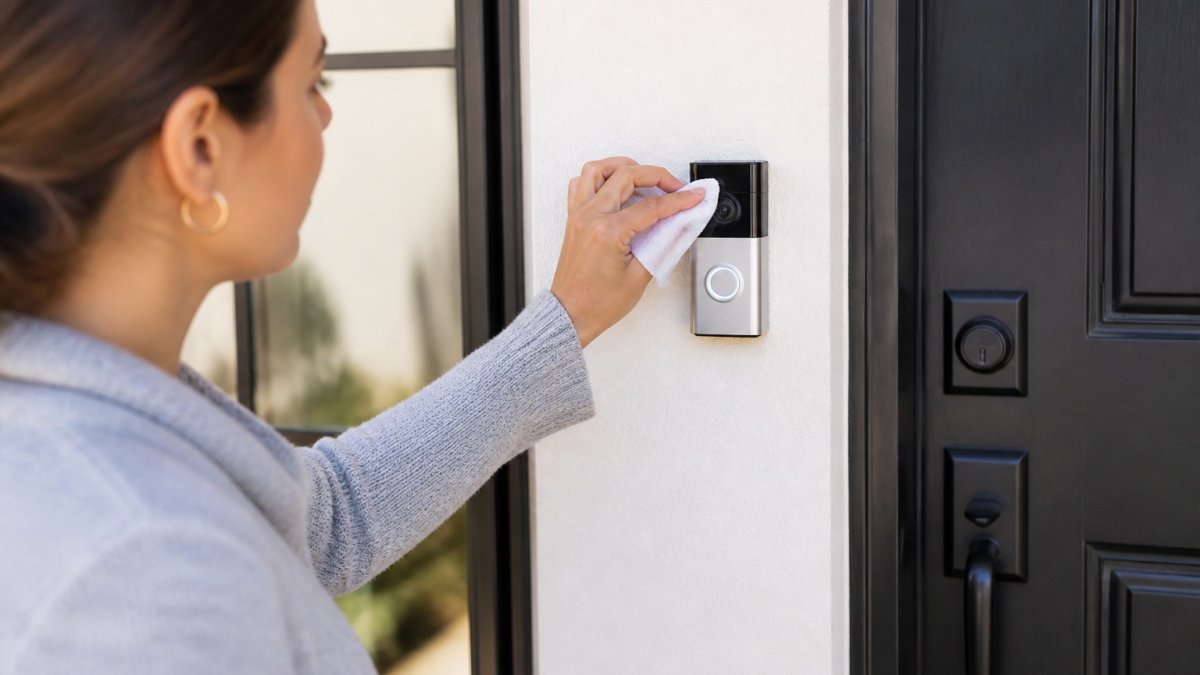
Use a soft, dry cloth on camera lenses and sensor faces. Avoid harsh cleaners near electronics. For exterior devices, check seals and mounting screws after storms.
For door hardware, check the fingerprint reader regularly. The Smart Fingerprint Door Lock for Wooden Doors from Modern Goods Living ($89.99) supports up to 20 fingerprints and four unlock methods, so a regular check that each enrolled finger still reads correctly is worthwhile. Test the mechanical key every few months too, in case the electronics fail.

Doorbell and camera checks follow the same pattern. The Wireless Video Doorbell with 1080P HD, WiFi and Night Vision from Modern Goods Living ($49.99) runs on a built-in rechargeable battery, so keeping its charge up is part of routine upkeep. The Security Camera Monitor from Modern Goods Living ($26.59) benefits from the same routine: clean the lenses, confirm the view covers the intended area, and verify two-way audio and motion alerts work.

Set Up a Monthly Smart Home Maintenance Calendar and Start Your First Check This Weekend
A calendar turns these habits into a system. The most useful structure is a four-tier cadence, weekly, monthly, seasonal, and annual, because different maintenance tasks fail on different clocks. Firmware and batteries drift monthly; gutters, seals, and outdoor cameras need seasonal attention; backups and lifecycle reviews only make sense once a year.
Weekly (5 minutes). Open the app for each critical system and confirm every device shows online. Glance at the alert history for false triggers, repeated offline events, or low-battery warnings. A device that dropped offline three times this week is telling you something a monthly check would miss.
Monthly (20 to 30 minutes). Run the pass/fail checklist above: locks, cameras, sensors, alarms, thermostat, hub, and router. Install pending firmware updates and confirm they actually applied. Record battery levels.
Seasonal (about 60 minutes, four times a year). Clean camera lenses and sensor faces, including exterior units after storms. Check exterior seals, mounting screws, and cable jackets. Test the thermostat against a reference thermometer. Restart the router and hub to clear memory buildup. Review whether any device has moved or been blocked by furniture, plants, or new construction.
Annual (about 2 hours). Do the tasks that protect you when something goes wrong:
- Back up configurations. Export automation routines, device lists, and scene settings where the app allows it. Photograph wiring and mounting for thermostats, doorbells, and locks. Store the backup somewhere other than the hub itself.
- Review accounts and access. Remove former household members, contractors, and guests from app access. Confirm two-factor authentication is on for every smart-home account and the router. Change shared guest codes.
- Check device lifecycle. Look up the manufacturer's support end date for each device. Devices past end of support stop receiving security patches and may lose app or hub compatibility. Plan replacements before a device fails, not after.
- Review the year's data. Count false alerts, offline events, battery replacements, and repairs per device. A camera that generated 40 false alerts last year is misconfigured or failing, and the annual review is where you catch it.
A summary table keeps the cadence visible:
| Task | Frequency | Time Needed | What to Look For |
|---|---|---|---|
| Online status and alert review | Weekly | 5 min | Offline devices, false triggers, low battery |
| Full pass/fail checklist | Monthly | 20-30 min | Failed tests, pending updates |
| Firmware and app updates | Monthly | 10 min | Updates installed, release notes reviewed |
| Battery checks | Monthly | 5 min | Levels below 50 percent |
| Sensor and lens cleaning | Seasonal | 15 min | Dust, smudges, fogging, seal damage |
| Lock and key tests | Seasonal | 10 min | Fingerprint, code, and key reliability |
| Network and router check | Seasonal | 10 min | Signal strength, dropped devices |
| Thermostat calibration | Seasonal | 15 min | Reading differences from a reference |
| Configuration backup | Annual | 30 min | Exported routines, photos of wiring |
| Account and access review | Annual | 20 min | Stale users, 2FA status, guest codes |
| Device lifecycle review | Annual | 30 min | End-of-support dates, replacement plan |
Start the first check this weekend. Pick the three devices you rely on most, run through the monthly checklist for them, and note anything that needs attention. Then put the weekly five-minute check on your calendar, that single habit catches more failures than any annual deep clean.
Frequently Asked Questions
How often should you maintain smart home devices?
Most smart home devices need a quick check monthly and a deeper review each season. Monthly, look at app alerts, low battery warnings and offline devices. Quarterly, clean sensors and cameras, check batteries, and confirm firmware is current. Twice a year, review automations, test fail-safe behavior such as what a smart lock does when the network drops, and back up your hub or app settings. A regular schedule catches problems before they shorten a device's working life.
How do you make smart home devices last longer?
Keep them powered, clean and updated. Use the power supply the manufacturer specifies, replace batteries before they fail completely, and keep sensors free of dust and grease. Install the Wi-Fi hub or router where signal is strong so devices are not constantly reconnecting. Apply firmware updates from the manufacturer, and avoid running devices outside their rated temperature and humidity range. For example, the Smart Fingerprint Door Lock lists a working temperature range of -25°C to +55°C and 40%RH to 80%RH, so it should be installed where conditions stay inside those limits.
How often should you update smart home device firmware?
Check for firmware updates at least once a month, and apply them when the manufacturer releases a security or stability fix. Enable automatic updates where the app offers them, but still review the update notes. Keep a short record of the firmware version for each device so you can see at a glance which ones are behind. Devices that stop receiving updates are a security risk, so retire or replace any product the manufacturer no longer supports.
How can you improve the reliability of a smart home network?
Place your router or mesh nodes centrally, keep the 2.4GHz network available for devices that require it, and restart the router every few weeks to clear memory issues. Many devices, including the WiFi Temperature Humidity Monitor, support 2.4GHz Wi-Fi only, so do not rely on a 5GHz-only setup. Give critical devices stable addresses in your router settings and change the default network password to a strong one.

